

Suppose you maintain a staging application. You need a shell to inspect its logs, a file browser to check its configuration, and a tunnel to reach an internal web interface. Tomorrow, you need to find the same host and repeat the task without confusing it with production.
The right client makes that repeated work clearer, not just longer on features. Use the comparison below to shortlist two tools for your own workflow. We build Zync; this is a comparison of documented capabilities, not a hands-on benchmark or a ranked list of winners.
This comparison includes current Zync workspace features. Availability in other clients can depend on the installed version, edition or plan.
The screenshots illustrate the tools rather than documenting every feature. SecureCRT and Tabby are shown through their websites; Zync’s image is the homepage screenshot.
Quick comparison
Start with the step that interrupts you most: finding hosts, transferring files, arranging sessions or repeating commands. Check that the client runs on the operating systems you use.
| Client | Workflow to consider | Main trade-off |
|---|---|---|
| OpenSSH | Shells and scripts | Bring your own layout |
| PuTTY | Windows sessions | Separate transfer tools |
| MobaXterm | Windows SSH, SFTP and X11 | Edition limits |
| Termius | Desktop and mobile sessions | Plan-dependent sync |
| Tabby | Splits and plugins | More setup choices |
| SecureCRT | Session automation | Commercial license |
| Zync | Host-centered workspace, files and tunnels | Desktop only |
Feature support at a glance
✓ Supported with the method shown. ✕ Not built in. ◐ Companion tool. On small screens, scroll the table horizontally. Features may depend on the edition, plan or installed extensions.
| Client | Named connections | Terminal splits | File transfer | SSH forwarding |
|---|---|---|---|---|
| OpenSSH | ✓ Config aliases | ✕ Use a terminal tool | ✓ CLI tools | ✓ |
| PuTTY | ✓ Saved sessions | ✕ Not built in | ◐ PSFTP or PSCP | ✓ |
| MobaXterm | ✓ | ✓ | ✓ SFTP browser | ✓ |
| Termius | ✓ | ✓ Workspaces | ✓ SFTP browser | ✓ |
| Tabby | ✓ | ✓ | ✓ Zmodem; extensions vary | ✓ |
| SecureCRT | ✓ | ✓ Tab groups | ✓ SFTP commands; SecureFX for a GUI | ✓ |
| Zync | ✓ | ✓ Split and dock panes | ✓ SFTP browser | ✓ |
This table separates file-transfer support from a built-in graphical browser. Tabby’s project feature list documents Zmodem transfers and lists SFTP-related extensions. SecureCRT’s transfer guide distinguishes its SFTP command tab from SecureFX. OpenSSH’s splits come from your terminal or multiplexer, not OpenSSH itself. Check edition limits and plan entitlements before assuming that every supported feature is included in your installation.
OpenSSH for a workflow you can script
Workflow: command-line connections and automation, using your preferred terminal. On Windows, check that the OpenSSH Client is installed; Microsoft documents it as a feature on demand.
OpenSSH is a sensible starting point if you already work comfortably in a shell. Its suite includes ssh, sftp and scp, along with key-management tools and SSH tunneling. You can connect, transfer files and forward a port without adopting a graphical connection manager. See the OpenSSH project overview.
Its strength is composition. Keep host aliases in SSH configuration, run commands from scripts, and use the terminal emulator you prefer. Tabs and local splits belong to that emulator, not the SSH protocol.
For example, an entry in your user SSH configuration can make a staging connection recognizable without a graphical host list:
Host example-staging HostName staging.example.com User demo Port 22 IdentityFile ~/.ssh/id_ed25519The hostname, account and key path are examples. With your own valid values, ssh example-staging uses that configuration. Review the SSH configuration manual for the file location and options on your setup. Verify an unfamiliar host’s fingerprint before accepting it.
Choose it when repeatable commands and existing SSH configuration are more useful than a graphical directory. Consider another approach when a visual host list or file browser helps you navigate with fewer mistakes. OpenSSH is a foundation, not a requirement to do every task manually.
PuTTY for individual Windows sessions
Workflow: saved SSH sessions in separate terminal windows. This comparison focuses on its Windows interface.
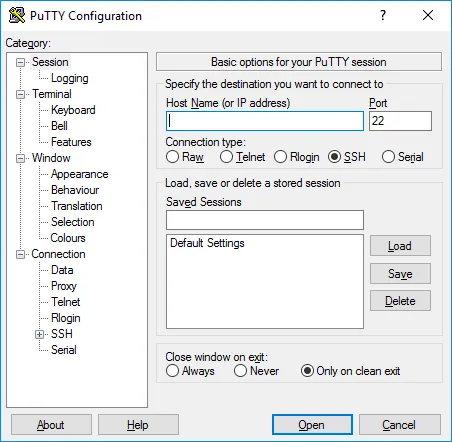
PuTTY provides a straightforward Windows SSH interface with saved sessions and configurable terminal behavior. Its session controls let you start, duplicate and restart connections. Keeping sessions in separate windows can be enough when you work on a small number of tasks at a time.
You can name a saved session Example staging; you do not have to identify it only by an IP address. The configuration manual explains saving and loading a complete set of options under a chosen name.
PuTTY also supports SSH port forwarding. Its companion tools PSCP and PSFTP provide command-line file transfer.
Choose it when individual sessions and familiar connection settings are sufficient. Consider another approach when you want a graphical file browser or an integrated multi-pane workspace. Companion tools are a valid workflow, not automatically a reason to replace PuTTY.
MobaXterm for a Windows remote-access toolkit
Platform: Windows. Workflow: SSH, graphical SFTP and X11 in one remote-access toolkit.
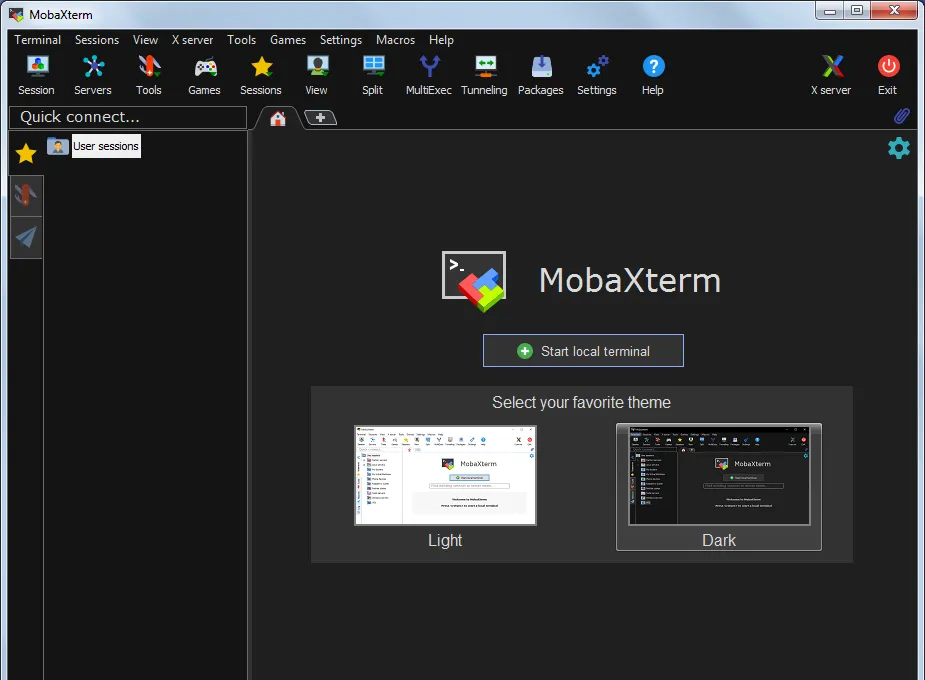
MobaXterm brings tabbed terminals, a graphical SFTP browser, an X11 server and several remote-access protocols into a Windows application. Its feature overview covers SSH sessions, tunneling, remote file editing and password management with a master password.
This combination is useful when you need more than a shell. You can browse files while connected, display remote X11 applications, and use the same toolkit for other supported connection types. Its documentation also describes split-terminal modes.
Choose it when your daily workstation is Windows and you benefit from the surrounding remote-access tools. Consider another approach when the same desktop app must run on macOS or Linux too. MobaXterm has Home and Professional editions with different limits. Check the edition comparison against your saved-session and tunnel needs; a free edition is not automatically an unlimited edition.
Termius for organized sessions across devices
Platforms: Windows, macOS, Linux, iOS and Android. Workflow: organized connections across desktop and mobile devices, with plan-dependent sync and sharing.
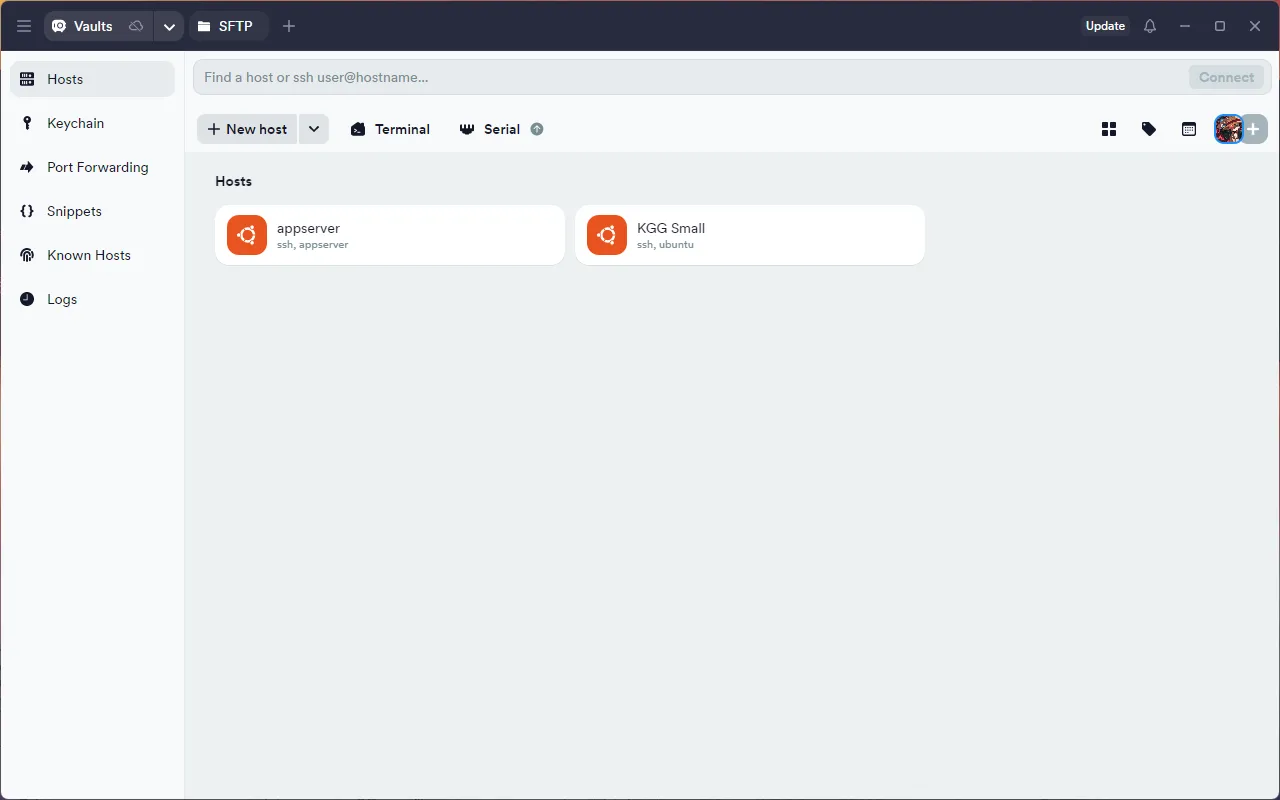
Termius is worth considering when desktop and mobile access belong to the same workflow. Its platform pages cover Windows, macOS, Linux, iOS and Android.
Its January 2026 Workspaces announcement describes grouping terminals around a task, switching between a focused session and a split view, broadcasting commands, and saving workspace templates. Those features address a real problem: remembering which sessions belong to an investigation rather than treating every connection as an unrelated tab.
Plan selection matters if you want cross-device sync or team sharing. Review the current plans rather than assuming every feature has the same entitlement. That page distinguishes local vault storage from personal and team cloud vaults. Termius should not be described as having only cloud credential storage.
Choose it when mobile access, organized workspaces or shared connection management are priorities. Consider another approach when you do not need those features and prefer a smaller set of local tools. Compare the actual plan you would use, not an amalgam of every feature offered across all tiers.
Tabby for a configurable terminal environment
Platforms: Windows, macOS and Linux. Workflow: configurable local terminals, SSH and serial connections.
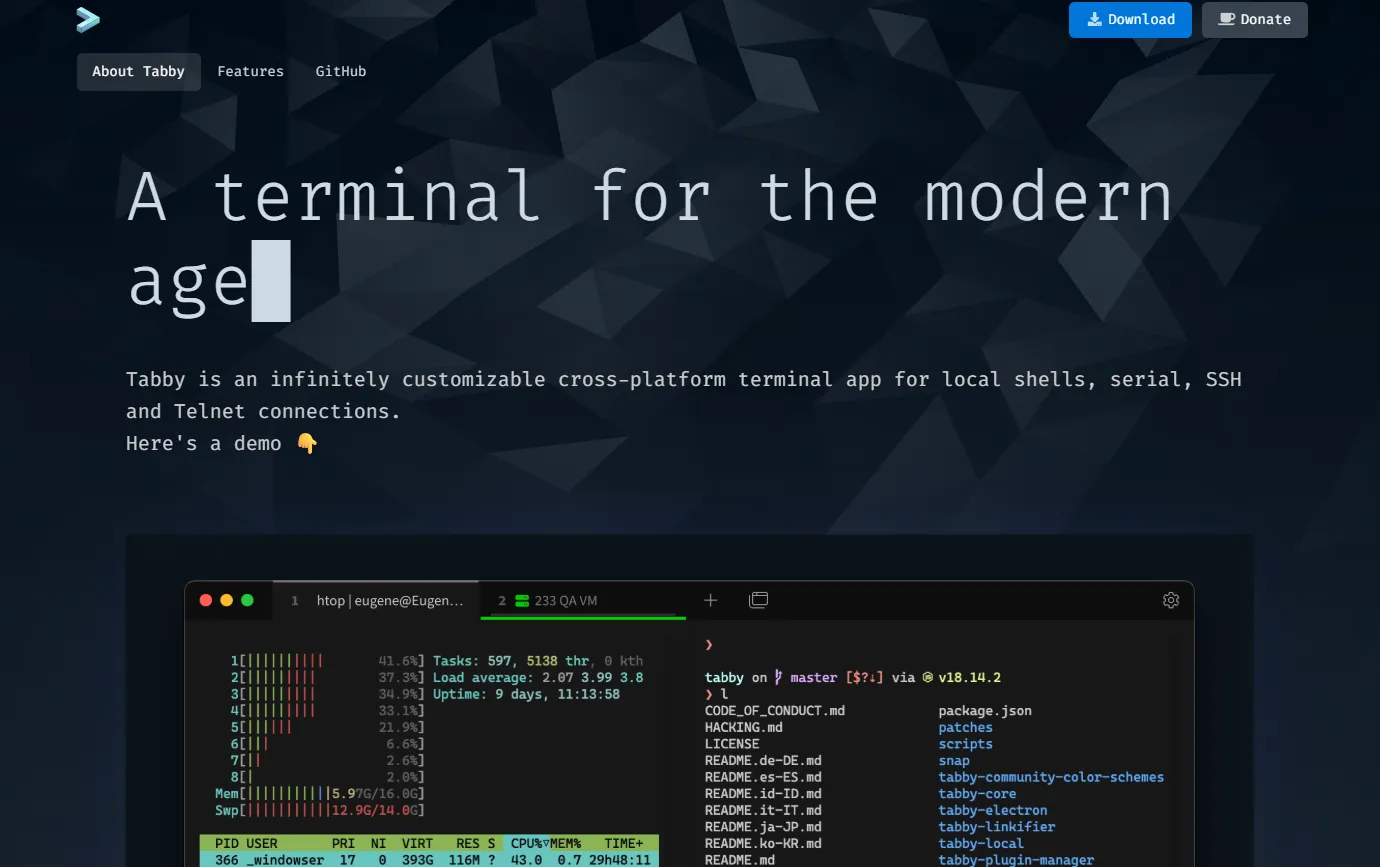
Tabby combines local terminals, SSH and serial connections on Windows, macOS and Linux. Its project documentation describes split panes, configurable shortcuts, remembered tabs, a connection manager and an encrypted container for SSH secrets and configuration.
Plugins and themes are part of its appeal. You can build a terminal environment around the shells and connection types you use, rather than adopt one fixed workspace. The project lists workspace-management and SFTP-tab plugins; distinguish those extensions from the base application’s features when comparing installations.
Choose it when configurable terminals and plugins are useful parts of your workflow. Consider another approach when you want fewer settings or a minimal terminal. Tabby’s own documentation says it is not lightweight. That is not a measured memory comparison against the other clients here; try your normal sessions and chosen plugins before deciding.
SecureCRT for repeatable terminal workflows
Platforms: Windows, macOS and Linux. Workflow: saved session profiles, scripting and terminal automation.
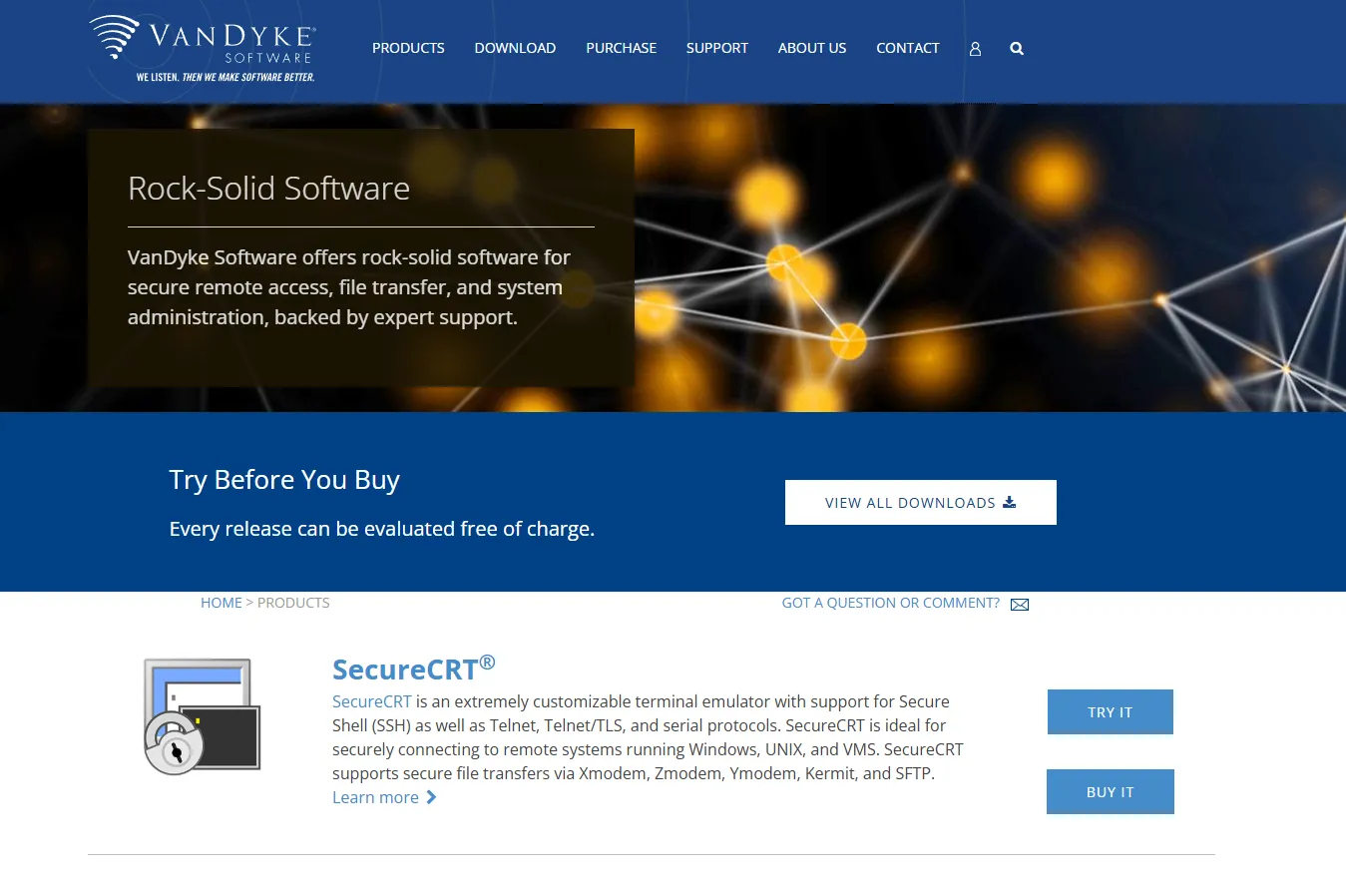
SecureCRT provides terminal emulation and session management on Windows, macOS and Linux. Its product overview describes tab groups, key mapping, scripting and saved session layouts.
It is a useful candidate when terminal work needs to be repeatable: established session profiles, automation scripts and carefully configured key mappings can matter more than a new visual design.
File-transfer requirements deserve a closer look. SecureCRT has transfer capabilities, while VanDyke’s SecureFX supplies a dedicated graphical file-transfer application that integrates with it. Do not treat those as the same product or assume a combined license.
Choose it when session profiles, scripting and key mapping are central to your work. Consider another approach when those capabilities do not justify a commercial license for your use. If your organization has security requirements, verify the precise product version, configuration and approval process rather than treating a product name as a compliance guarantee.
Zync for keeping a host and its work together
Platforms: Windows, macOS and Linux. Workflow: local and remote terminals, SFTP files and tunnels organized around a host, with configurable workspace panes.
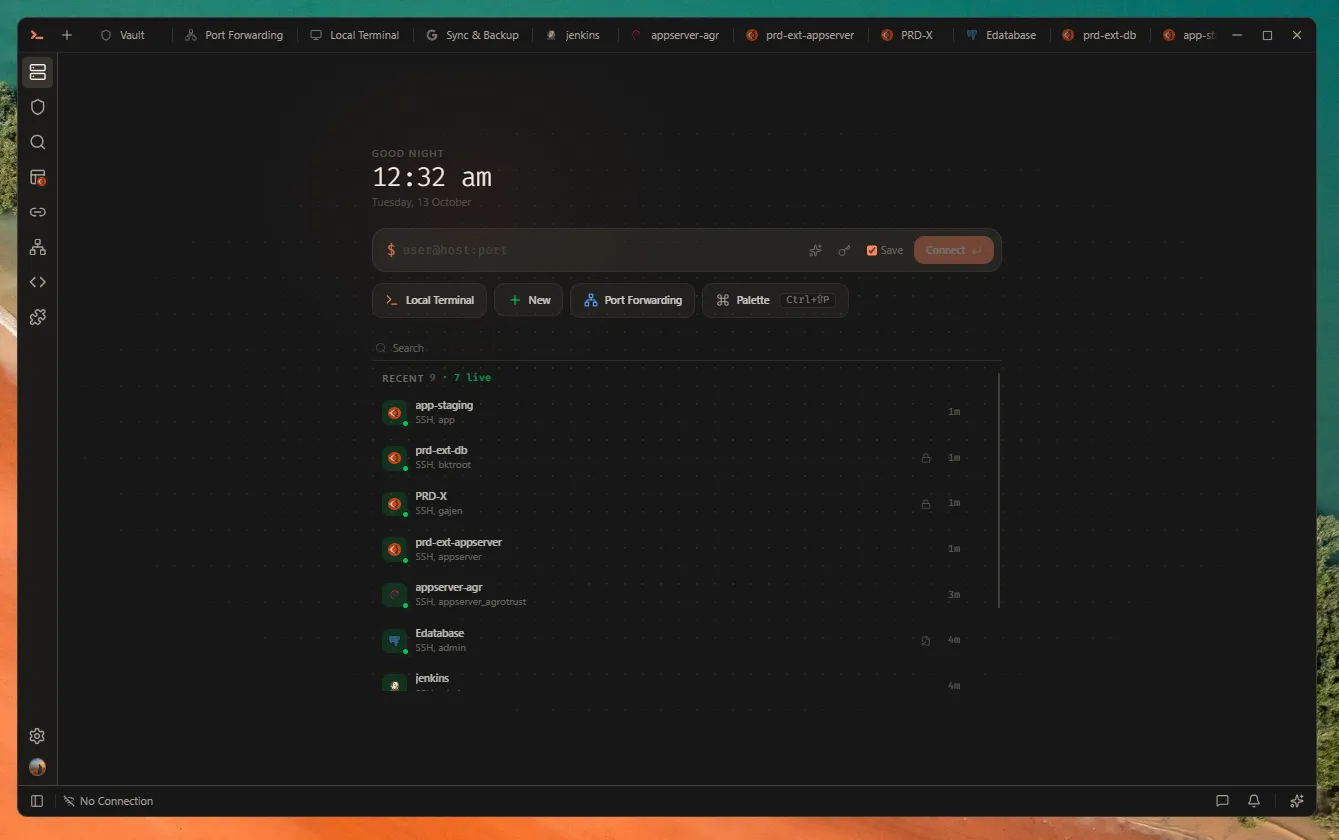
Zync’s approach is to keep SSH access, SFTP files and port forwarding in one desktop application for Windows, macOS and Linux. You can save a recognizable host, open its terminal, browse files and manage a forward without re-entering the same connection into unrelated tools.
Split a workspace to keep related panes together, or dock a supported pane in a side or bottom region so it stays visible while you switch center tabs. Rename and pin tabs to distinguish logs, file work and deployment checks. These layout changes reuse the existing content rather than requiring another connection. The workspace release guide shows the arrangement and navigation controls.
Credentials can live in an on-device encrypted vault, while key files remain an option. Optional encrypted backup uses your Google Drive, not a Zync-hosted credential store. Core local-terminal and SSH use does not require a Zync account.
You can also customize supported interface colors with validated theme JSON import and export, and edit multiple shortcut bindings with terminal-first or Zync-first priority. Zync is free to use and source-available under FSL-1.1-ALv2; it should not be confused with software under an unrestricted open-source license.
Choose it when you want a local-first desktop workspace that keeps hosts, files, terminals and tunnels close together without requiring a subscription for core use. Consider another approach when phone access or a mature terminal-scripting environment is the deciding requirement. Zync is desktop-only. Pseudonymous usage analytics are enabled by default and can be disabled in Settings.
Before you switch
Check these four boundaries before moving your connections. A feature checkmark is useful only if it matches the way you work.
File transfer and companion tools
Try the file operation you actually need: browsing, uploading, editing, synchronizing or resuming a transfer. Command-line SFTP, a graphical browser and a companion application offer different workflows.
If file handling is most of your work, consider a dedicated tool. WinSCP offers Windows file-transfer workflows and PuTTY integration, so a companion app need not mean retyping connections.
Bitvise SSH Client is another Windows option combining a terminal, graphical SFTP and tunneling.
Layout restore and running processes
Restoring tabs or a layout may create new remote shells; it does not guarantee that an old process survived a dropped connection.
For suitable Linux or Unix-like servers, tmux supports detaching and reattaching to remote sessions while the server and session remain alive. It does not replace a service manager or guarantee survival through reboots. See the Zync tmux guide for the current setup.
Credentials and backups
Separate connection metadata from passwords, keys and passphrases. Check whether the client references a key file, uses an authentication agent or imports secrets into a vault. Then check locking, recovery, export, deletion and what leaves the device through backup or sharing. Local storage is not automatically encrypted, and optional cloud sync is not necessarily required. SSH connection encryption does not settle these storage questions.
Cost and migration
Check the current edition, billing terms and any companion-product license before purchasing. Keep a recoverable copy of your setup and test one non-production host first, including its username, key format, key path, bastion settings and host-key verification. Importers may omit settings. Keep your old client until the new setup works.
Check your exit path too: can you export hosts, retain existing keys and identify any secrets in the export? Do not put an unencrypted export in a shared folder merely because it is JSON.
Choose with one familiar task
Pick two candidates and use a non-production host you are authorized to access. Use the same workstation, host, account and harmless files so you compare the interface rather than different network conditions.
- Save a recognizable staging connection and confirm the host fingerprint through a trusted channel.
- Run
hostname,whoamiandpwdin the remote shell. Can you still identify the host when a second session is open? - Transfer a disposable text file to a directory you own, open it again, and check that the content matches. Note whether a companion tool is involved.
- Forward a permitted internal service to an unused loopback port on your computer. Check the local listener, remote destination and stop control.
- Close and reopen the client after finishing the test. Inspect what it remembers and what needs a fresh connection.
For a test HTTP service already listening on the remote host at 127.0.0.1:8080, the OpenSSH equivalent of step four is:
ssh -N -o ExitOnForwardFailure=yes -L 127.0.0.1:38080:127.0.0.1:8080 demo@staging.example.comReplace the example account and hostname with your permitted host. Visit http://127.0.0.1:38080 while the forward is running. The first loopback address is your computer; the destination loopback address is reached from the SSH server. ExitOnForwardFailure checks tunnel setup, not the health of the web service. Stop this foreground tunnel with Ctrl+C. See the OpenSSH forwarding options.
You can repeat these steps in a graphical client using the same values. Record practical friction: connection details you had to re-enter, places where the host identity became unclear, and whether the saved setup made the second attempt easier. Do not turn a single informal test into a universal speed ranking.
Keep the client that makes your normal work clearer. You do not need to replace a working SSH setup simply because another application has more features.
Common questions
Is a graphical SSH client better than OpenSSH
Not for every task. A graphical client can help you find hosts, browse files and arrange sessions. OpenSSH can be easier to integrate into scripts and an existing terminal setup. Start with the step you want to improve, rather than assuming a graphical interface replaces the command line.
Can PuTTY manage more than one saved host
Yes. Saved sessions can have recognizable names and connection settings. The distinction is how you organize and work with those sessions, not whether PuTTY can remember another server.
Are files available in every SSH session
Not necessarily. Shell access does not guarantee the server provides SFTP, and account permissions still govern the files you can read or write. Verify the server’s transfer subsystem and permissions before blaming a client’s file browser.
Does a new client need copies of all my private keys
Not always. Depending on the client, it may reference existing files, use an authentication agent or import secrets into managed storage. Confirm the supported method and format before importing. A host profile and its key material are not the same data.
Should AI decide which SSH client I choose
Only if it solves a task you actually have. Check what context is sent to the model, which provider receives it and whether you must approve commands before execution. Do not assume generated commands are correct for your host or that approval alone makes them safe. Terminal and file workflows should remain useful when you choose not to use AI.
Put it into practice.
Open a local shell. Connect to your server. Make the workspace yours.